How to make Ozil AI goal video from one photo
Here is how to make Ozil AI goal video with the controls in OzilGoal’s generator. You supply one photo, choose a clip and its look, review the model, quality and credit cost, then generate a vertical video. This tutorial follows the real workflow rather than a generic prompt recipe. You can watch the existing sample first to decide whether the format is what you want.
Make your Ozil goal video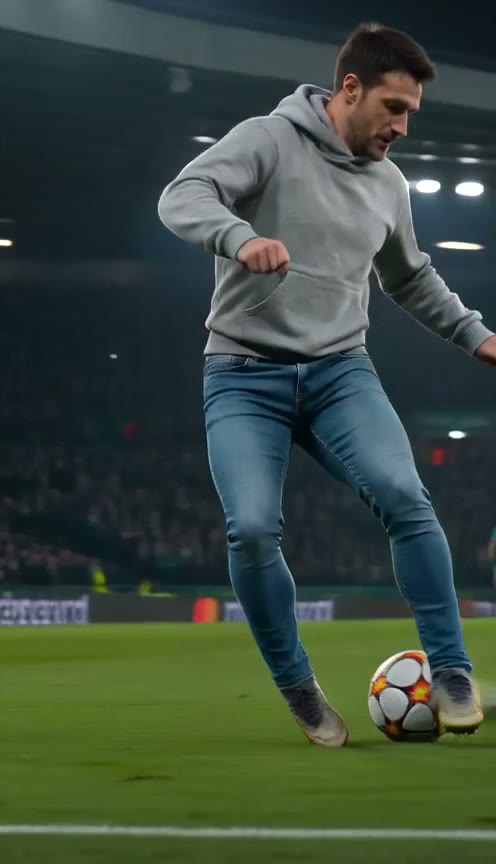
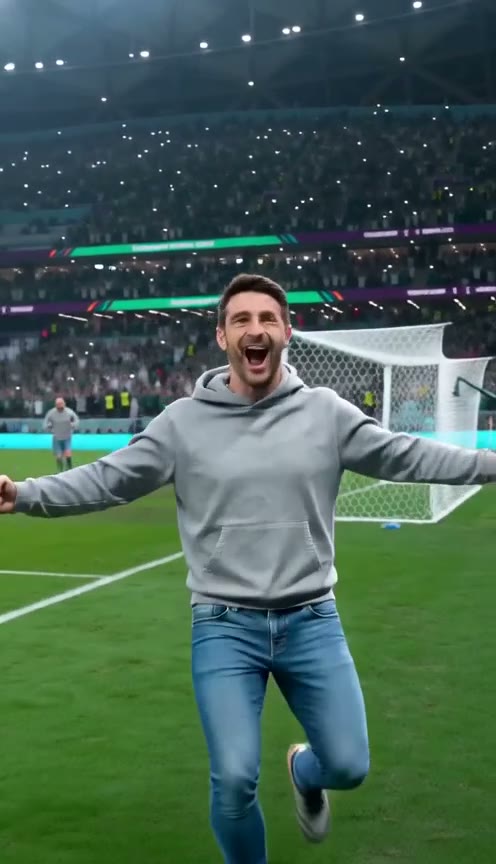
Prepare one clear photo
Use a photo of yourself or someone who has agreed to the upload and intended use. The generator also accepts a dog, cat or other pet. Choose one clear subject rather than a group picture. Look for an unobstructed face, even light and enough of the body to make the pose understandable. A heavily cropped screenshot or a dark face gives the model less useful visual information.
The supported image types are JPEG, PNG and WebP, with a 20 MB file limit. Choose an original image if you have one instead of repeatedly resaving a compressed chat preview. You do not need to dress as a footballer or photograph a real stadium. The generator creates a new scene. Keep private information out of the background, and check that the photo is the one you meant to upload before proceeding.
Upload, then choose the clip
At the generator, use the photo picker to upload your image. Make sure the selected thumbnail shows the intended subject. Uploading prepares an input; it does not by itself submit a paid video render. If you replace the photo, check the new preview before continuing. Both current clips use one photo, so there is no need to build a sequence of separate action photographs or fill multiple character roles.
Choose Ozil goal for the patient finish past the goalkeeper and sliding defenders. Choose Yamal rabona for a different fictional football move with a fake rabona. The clip chooser changes the action; it is not a speed or quality setting. A guide link can open the homepage with the desired clip selected, but you should still inspect the visible choice before pressing the generation button, especially after returning from another page.
Select style and outfit
The style controls offer realistic, blocky, cartoon and anime. Use realistic if you want a more photographic interpretation, or an illustrated option when the fantasy should be obvious. Broad styles do not promise an exact likeness or a specific franchise character. Pick the look that supports the joke, then let the sample and your own expectations guide whether an experimental render is worth its displayed credit cost.
For the outfit, keep the clothes from the input photo or choose a football kit. Keeping clothes is an instruction to the model, not a guarantee that every pattern or accessory survives each frame. The kit option places the subject in football clothing; it is not a promise of an official club uniform. With a pet, clothing and body proportions can become stylised during the action. Review the finished clip before describing it as realistic.
Choose a model and a supported quality
Open the Settings panel to choose the model and quality. The model tiers shown in the UI are Standard, Fast, Pro and Ultra. The available resolutions depend on the model: 480p and 720p are offered across the current tiers, while 1080p is available with Ultra. Both present clips are 15-second vertical videos. Check the selected model and quality together, because changing one can change the available options and the credit cost shown by the form.
Higher resolution gives you more pixels; it cannot repair an unclear input photo or guarantee correct motion. Choose a setting that fits the screen and purpose of the video. Before buying more credits, check your available balance and the cost of the chosen render. The pricing page explains packs and model rates. If you are comparing a free editing route, pause here and read the free-options guide before committing to a purchase.
Check credits, consent and submission
Review the photo, clip, style, outfit, model and quality as one final set. Confirm the required photo permission and consent. The form asks you to sign in if needed and offers the purchase flow when your balance is insufficient. Follow the visible account or credit prompts, then return to the generator and recheck the settings. Buying credits and generating a video are separate actions; a purchase alone is not a completed render.
The generation button shows the applicable credit charge. Submit only after that amount and the input choices are clear. A queued or processing job means the request is still being worked on. It is not a finished download. Avoid repeatedly submitting the same idea while waiting, since another successful submission is a separate paid render. If something looks wrong, inspect the status in your videos rather than assuming the first request disappeared.
Wait, preview, download and share
Wait for the job to finish and use the result area or My videos to open it. There is no guaranteed completion time in this guide. If the service marks a generation as failed, the product’s automatic credit-refund process applies; payment refunds are a separate policy. Check the account’s actual status before deciding to submit again. Contact support with the relevant job details if the visible status does not make sense.
Play the completed video and listen to its soundtrack before downloading. Check the face, limbs, ball contact and ending. Use the offered download control, then open the saved file once to confirm that it plays with the sound you expect. Share the file through your chosen app and add an AI label. For someone else’s photo, get approval for the finished clip and caption before publishing, even if permission to upload was already given.
Upload your photo
Open the generator and upload one JPEG, PNG or WebP photo, up to 20 MB, of a person or pet you have permission to use.
Choose the football clip
Select Ozil goal for the patient finish or Yamal rabona for the fake rabona move. Check the selected clip in the generator.
Set style and outfit
Choose realistic, blocky, cartoon or anime style. Keep the source outfit or select a football kit.
Choose model and quality
Select Standard, Fast, Pro or Ultra, then a supported resolution. Check the displayed credit cost; only Ultra offers 1080p.
Confirm credits and generate
Confirm photo permission, sign in if requested, and buy credits if needed. Review settings and submit the paid render.
I’m 18+. My photo, or I have permission. No minors or public figures.
Wait for a finished result
Check the result area or My videos until processing completes. Do not treat a queued request as a finished video.
Preview, download and share
Watch with sound, check the generated details and download. Open the saved file, then share with an AI label and the subject’s permission.
Questions before you start
How many photos do I need?
One photo for either current clip. Use one clear person or pet rather than a crowded group image.
Do I need to write an AI prompt?
No. OzilGoal provides the football action through the clip selection. You control the photo, style, outfit, model and quality.
Can every model render 1080p?
No. Ultra offers 1080p. Check the resolutions displayed for the selected model before submitting.
Is uploading the photo the paid action?
No. A personal render is submitted through the generation control and uses the displayed credits. Review the charge before confirming.
Where should I check the result?
Use the result area or My videos. Preview the finished clip, then download it and verify the saved file before sharing.
OzilGoal is an AI parody and entertainment tool. It is not affiliated with Mesut Özil, Lamine Yamal, any club, league, UEFA or FIFA.